Foundation: Galactic Frontier Steam & PC Guide
Install on Steam or the official PC client, bind your account, and keep the same Trader across phone and desktop.
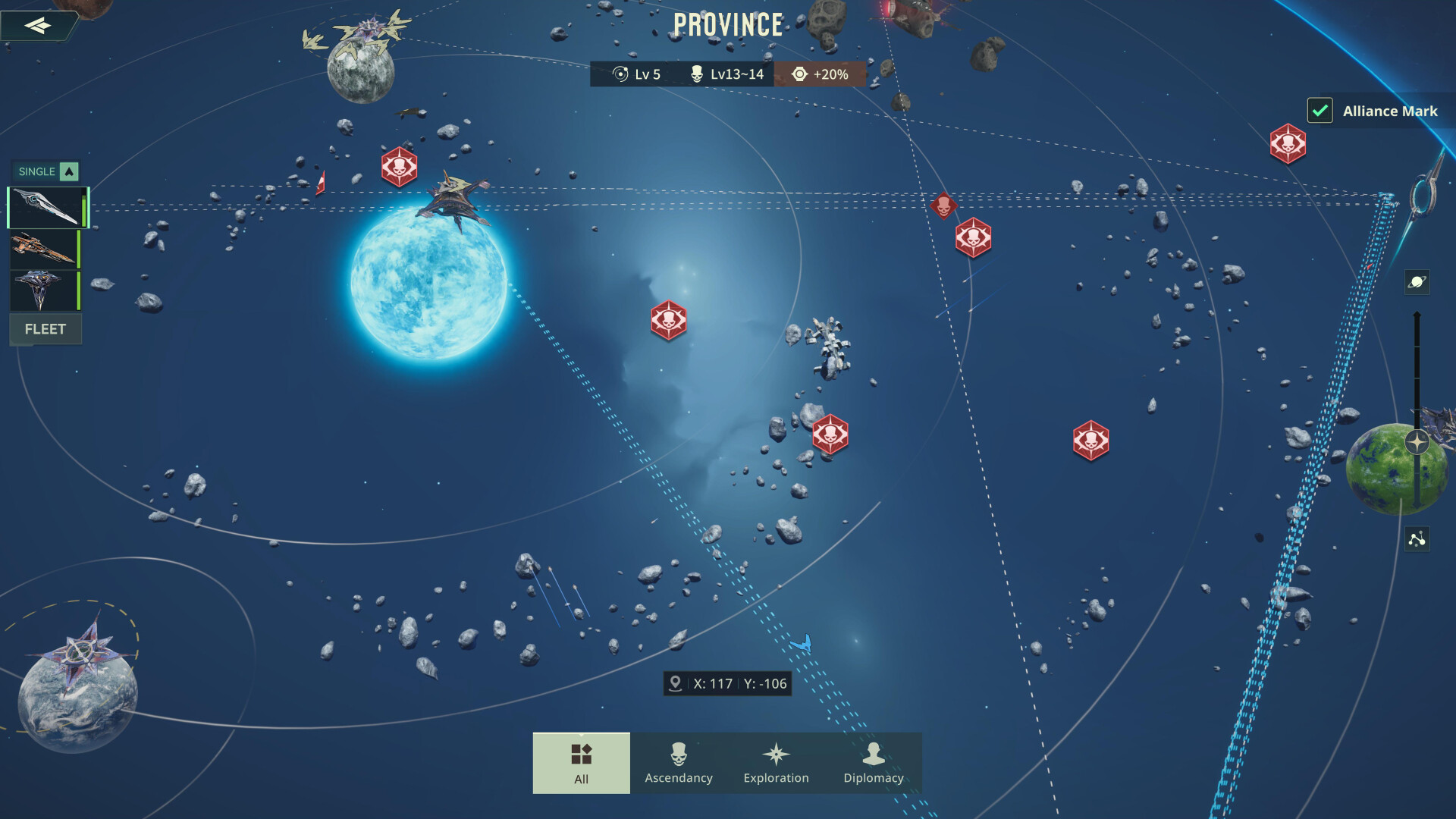
Foundation: Galactic Frontier is free on Steam (app 4223760, released around 5–6 November 2026) and has offered an official Windows client since the October 2025 mobile launch. This guide covers install options, account binding for cross-progression, PC controls, and how gift codes work when you play on desktop. Pair it with Getting Started if you are brand new, and redeem anything live on the Codes Hub.
Install options
You have three supported ways onto a Windows PC:
- Steam — search Foundation: Galactic Frontier or open app ID 4223760, install, and launch from your library. The Steam build includes the year of mobile content (Season 2 systems, Champion pool, UI updates) plus mouse and keyboard support.
- Official PC client — from foundation.game download the Windows installer, run the
.exe, and log in with a bound account. - Mobile stores — iOS / Android remain fully supported; bind the same account so you can hop between couch and desk.
Steam does not invent exclusive Season content. It expands reach and softens controls. Veterans who already play on phone keep the same mothership, Champions, and guild membership once the account is linked.
Bind your account before you switch devices
Cross-progression is server-side and instant once the account is bound. FunPlus supports common links such as email, phone, Google, Facebook, and Discord (exact options can vary by region and client build).
Recommended path:
- Open the game and tap the profile icon (upper-left).
- Open Settings → Account.
- Choose Account management / bind, then link at least one durable method—email is the safest if you plan Steam + phone + tablet.
- On a new device, use Switch account / login and enter the same credentials or verification code.
Do this before spending money or grinding a second guest Trader. Guest progress that was never bound is easy to lose when you clear app data or change phones. Official FAQ materials also stress binding for recovery across PC, Android, and iOS.
Steam vs native PC vs mobile
| Client | Best for | Notes |
|---|---|---|
| Steam | New PC players, wishlist converts | Free-to-play; shared progression after bind; mouse/keyboard UI |
| Official PC | Players who already used the web download | Same account ecosystem; often the path creators showed at launch |
| Mobile | Commutes, quick timers | Full feature parity for seasons and events |
Expect online multiplayer and co-op through Commerce Guilds on every client. Server choice still matters—friends must land on the same server (or transfer when FunPlus opens that window) to share guild war schedules.
Controls and quality-of-life on PC
Mouse and keyboard make map panning, Champion menus, and code paste much faster than a phone keyboard. Practical tips:
- Paste gift codes from a browser tab instead of typing them—see How to Redeem.
- Keep Discord and the Updates Hub open in a second monitor when Season 2 maintenance windows land.
- Use PC for long Ore Refinery / Energy Core planning sessions; use mobile for claiming dailies on the go.
- Watch thermal and power settings on laptops—the client is a full 3D sci-fi client, not a thin web shell.
Codes and PC promotions
Community lists sometimes include PLAYONPC2026 and other desktop-flavored strings. Treat every code as community-reported until the game accepts it. Redeem path is identical on PC: Profile → Settings → Account → Redeem Gift Code. After Steam’s launch week, Pocket Gamer still listed FOUNDATION and FURTHERFUTURE as the durable Water / Metal / Speedup pair—always recheck the Codes page after patches.
What to do in your first Steam hour
- Bind email (or another durable login) immediately.
- Redeem active codes; dump Universal Speedups into the Energy Core.
- Join a Commerce Guild—read Commerce Guild Guide for ports, helps, and Season 2 device sharing.
- Pick one Champion damage type and one Flagship direction before shopping the cash store (Spending Guide).
- If your server is already in Season 2 Siwenna, start Magnetic Storm Resistance in parallel—see Season 2 Guide and Magnetic Resistance.
Steam’s November 2026 wave brings more Traders into contested ports. Account binding and guild discipline matter more than chasing every cosmetic pack on day one.
Related pages
- Getting Started — day-one roadmap for any platform
- Codes — active gift codes
- Updates Hub — Steam + Season 2 timing
- Links Hub — official site, Discord, and storefronts
Frequently Asked Questions
Quick answers for traders exploring the frontier.
When did Foundation: Galactic Frontier launch on Steam?
Steam went live around 5–6 November 2026 as a free-to-play title (app 4223760), about a year after the October 2025 mobile launch.
Can I use my mobile account on Steam?
Yes if you bind the account (email is recommended) under Settings → Account, then log in with the same credentials on Steam or the official PC client.
Is the Steam version different from mobile?
It shares the same seasons, Champions, and progression. Steam adds mouse/keyboard-friendly UI and a new install path rather than exclusive story content.
Where do I redeem codes on PC?
Profile → Settings → Account → Redeem Gift Code. Paste carefully, then claim from mail if rewards do not appear instantly.